








































































On-page SEO is the process of optimizing everything on your website pages so search engines understand your content and users have a better experience. It includes titles, content, headings, images, URLs, internal links, page speed, and mobile usability.
Why it matters:
- Helps search engines understand what your page is about
- Improves rankings for relevant keywords
- Increases organic traffic
- Improves conversions because content matches user intent
- Builds long-term visibility in search results
If you use WordPress, you already have powerful tools to control most on-page SEO elements directly from the dashboard. This guide gives you a complete beginner-friendly checklist you can follow step by step.
Keyword research basics

Keyword research means finding the words people type into Google when they search for your services or information. Every page should target one main keyword and a few related phrases.
Simple keyword process
- Write down topics your audience searches for
- Use tools like Google Keyword Planner or Ubersuggest
- Check search intent. Is it informational, commercial, or transactional?
- Pick one primary keyword per page
- Choose 3 to 6 related keywords
WordPress example
When creating a blog post in WordPress:
- Add your primary keyword in the title
- Use it naturally in the first paragraph
- Add related keywords in headings and content
Mini checklist
- Primary keyword chosen
- Related keywords listed
- Search intent matches the page
SEO-friendly URLs and permalinks
SEO-friendly URLs are short and descriptive. They should clearly explain what the page is about.
Bad example:

Good example:
example.com/on-page-seo-checklist
WordPress settings

Go to Settings > Permalinks and choose Post Name.
Action steps
- Keep URLs short
- Include the keyword
- Avoid numbers and special characters
- If you change a URL, add a 301 redirect
Common mistakes
- Leaving default URLs
- Changing URLs without redirects
Title tags and meta descriptions
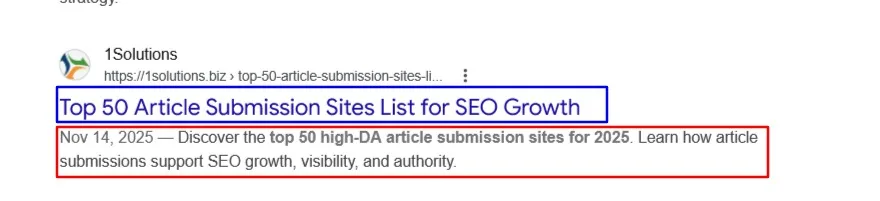
The title tag is the blue clickable headline in search results.
The meta description is the short summary below it.
How to optimize
Title tag tips:
- 50 to 60 characters
- Include main keyword
- Make it readable
Meta description tips:
- 120 to 160 characters
- Explain value
- Add call to action
WordPress example
Install an SEO plugin like Yoast SEO or Rank Math.
Inside the post editor:
- Scroll to the SEO section
- Edit title and meta description
- Preview how it looks in Google
Checklist
- Keyword in title
- Unique meta description
- Looks good in preview
Header tags H1 to H6
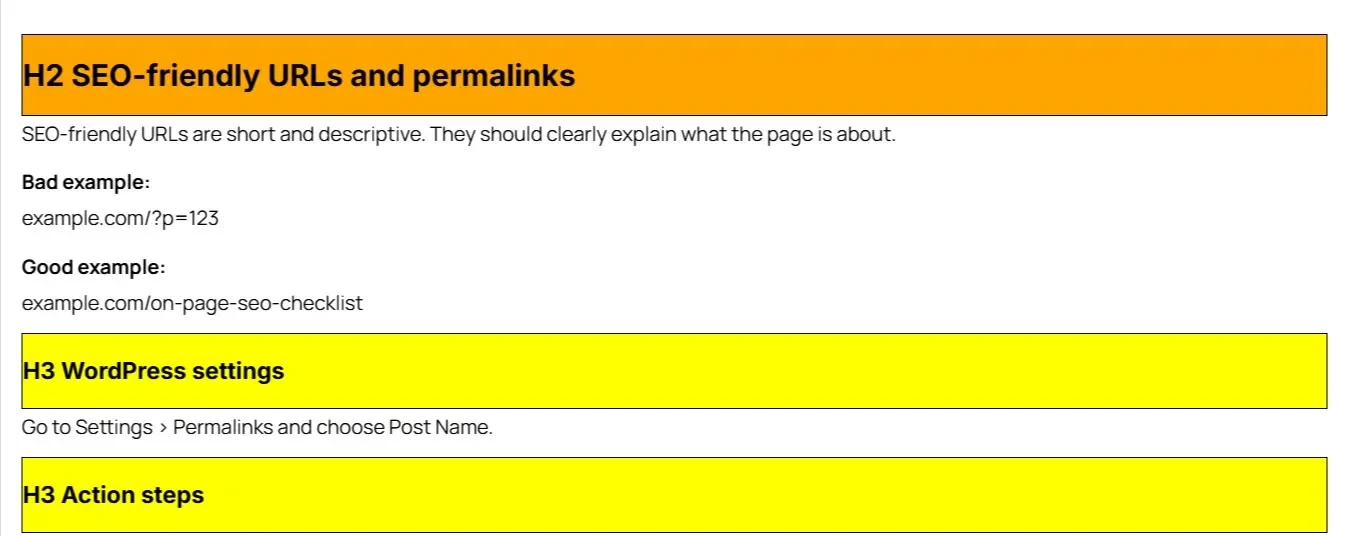
Headers structure your content for users and search engines. They improve readability and help search engines understand page hierarchy.
Best practice
- One H1 per page
- Use H2 for main sections
- Use H3 for subtopics
- Keep headings descriptive
WordPress tip
Use the heading block in the editor and choose proper levels instead of making text bold manually.
Common mistakes
- Multiple H1 tags
- Using headings only for styling
Content optimization best practices
Search engines reward helpful content. Your goal is to answer the reader’s question better than competitors.
Actionable tips
- Add keyword in first 100 words
- Use related keywords naturally
- Write clear and helpful content
- Use bullet points and short paragraphs
- Add FAQs where relevant
WordPress example
- Use heading blocks
- Add lists
- Insert internal links
- Add images and videos
Mini checklist
- Keyword used naturally
- Clear structure
- Helpful information
- Internal links added
Internal linking strategy
Internal links connect pages and help search engines crawl your site. They also help users find related content.
Action steps
- Link to relevant posts
- Use descriptive anchor text
- Add 3 to 5 internal links per page
- Link old posts to new ones
WordPress example
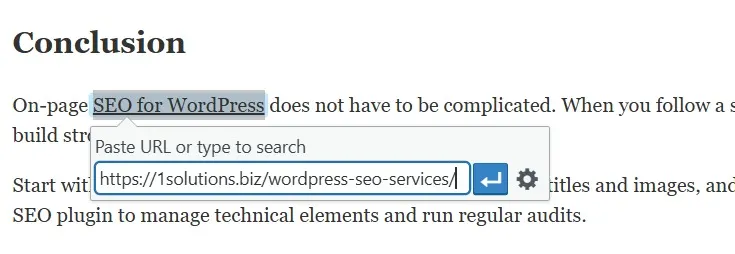
Highlight text and click the link icon. Search for existing pages and insert links directly.
Mistakes to avoid
- Linking randomly
- Using “click here” anchor text
Image optimization
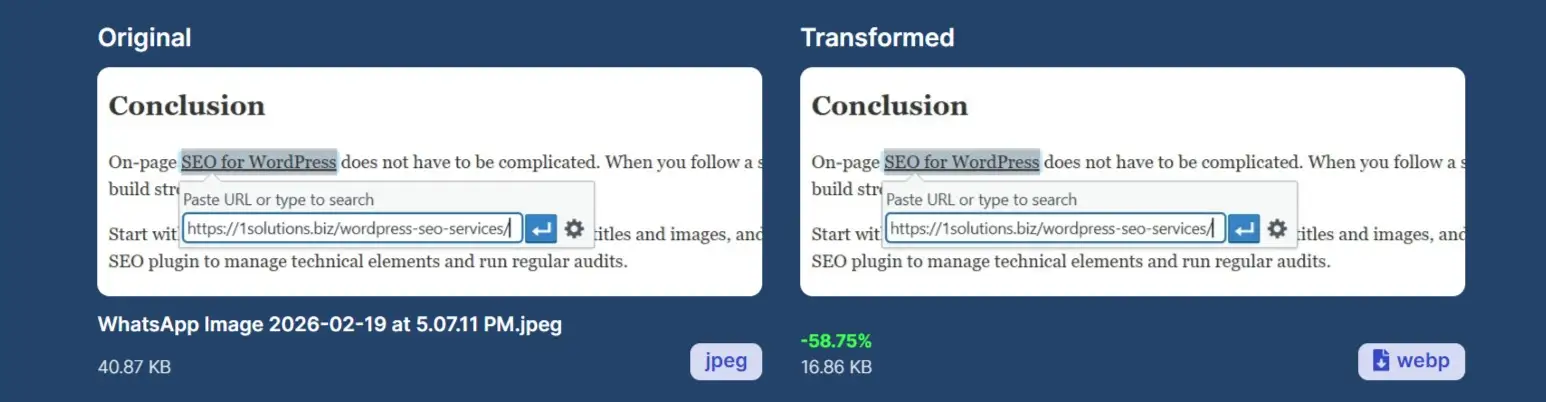
Large images slow your website. Optimized images improve speed and accessibility.
Steps
- Rename file before upload
- Use descriptive alt text
- Compress images
- Use WebP format
Example file name:
wordpress-seo-checklist.jpg
Alt text example:
WordPress permalink settings screenshot
WordPress tools
Use image compression plugins like Smush or ShortPixel.
Checklist
- File name optimized
- Alt text added
- Images compressed
Technical on-page factors
Site speed
Faster sites rank better and convert more.
Improve speed by:
- Optimize LCP
- Using caching plugin
- Compressing images
- Using CDN
- Choosing lightweight theme
Mobile friendliness
- Most users are on mobile. Your site must be responsive.
- Test using Google mobile test and fix layout issues.
- SSL certificate
- Make sure your site uses HTTPS. Install SSL from hosting panel and update WordPress URL settings.
Schema markup
- Schema helps search engines understand your content type such as blog, FAQ, or product.
- SEO plugins can automatically add schema.
Checklist
- Fast loading pages
- Mobile friendly design
- HTTPS enabled
- Basic schema added
WordPress SEO plugins
SEO plugins simplify optimization.
Popular options:
- Yoast SEO
- Rank Math
Setup steps
- Install plugin
- Run setup wizard
- Configure titles and meta
- Enable sitemap
- Add schema settings
XML sitemaps

A sitemap lists your pages so search engines can find them easily.
WordPress setup
SEO plugins automatically create sitemaps.
Find your sitemap at:
yourdomain.com/sitemap_index.xml
Submit it to Google Search Console.
Checklist
- Sitemap enabled
- Submitted to Google
- Includes important pages
Canonical tags
What they do
Canonical tags tell search engines which page version is the main one.
Most SEO plugins set canonicals automatically.
When to edit
If you have similar pages or duplicate content, set canonical to main page in plugin settings.
Fixing duplicate content
Duplicate content confuses search engines and can hurt rankings.
How to fix
- Use canonical tags
- Merge similar pages
- Add redirects
- Set low-value pages to noindex
Tools
- Google Search Console
- Screaming Frog
- SEO plugins
Readability and UX optimization
If users stay longer and engage with your page, rankings improve over time.
Tips
- Short paragraphs
- Clear headings
- Bullet points
- Images
- Table of contents for long posts
WordPress tools
- Use block editor
- Add table of contents plugin
- Check readability score in SEO plugin
Complete on-page SEO audit checklist
Use this before publishing any page.
Page level checklist
- Keyword selected
- Title optimized
- Meta description written
- URL clean
- Headers structured
- Content helpful
- Internal links added
- Images optimized
- Page speed good
- Mobile friendly
- HTTPS enabled
- Schema present
- Sitemap updated
- Canonical correct
- No duplicate content
Common mistakes to avoid
- Keyword stuffing
- Ignoring mobile users
- Uploading large images
- Using too many plugins
- Not writing meta descriptions
- Forgetting internal links
Final checklist recap
- Choose keyword
- Optimize title and meta
- Use proper headings
- Write helpful content
- Add internal links
- Optimize images
- Improve speed
- Ensure mobile friendliness
- Use SEO plugin
- Submit sitemap
- Check canonical tags
- Fix duplicate content
- Improve readability
Frequently Asked Questions
1. What is on-page SEO in WordPress?
On-page SEO in WordPress refers to optimizing individual pages and posts so search engines can understand and rank them. It includes optimizing titles, meta descriptions, headings, content, images, URLs, internal links, and technical elements like site speed and mobile friendliness. With the help of SEO plugins, WordPress makes it easy to manage these elements without coding knowledge.
2. Which SEO plugin is best for WordPress beginners?
Two of the most beginner-friendly SEO plugins are Yoast SEO and Rank Math. Both allow you to optimize titles, meta descriptions, XML sitemaps, schema, and readability directly from the post editor. Beginners often start with Yoast because of its simple interface, while Rank Math offers more built-in features. You should use only one SEO plugin at a time.
3. How long does on-page SEO take to show results?
On-page SEO improvements can start showing small results within a few weeks, especially if technical issues are fixed. However, noticeable ranking and traffic growth usually takes 2 to 4 months depending on competition, keyword difficulty, and content quality. Consistency and regular updates are key to long-term success.
4. How many keywords should I target on one page?
Each page should target one primary keyword and a few related keywords or variations. Trying to rank one page for too many unrelated keywords can confuse search engines and reduce effectiveness. Focus on one main topic per page and naturally include supporting terms throughout the content.
5. Do images affect SEO on WordPress websites?
Yes, images play an important role in on-page SEO. Properly optimized images improve page speed, accessibility, and search visibility. Use descriptive file names, add alt text, compress images, and use modern formats like WebP. Fast-loading pages create a better user experience and can help improve rankings.
Conclusion
On-page SEO for WordPress does not have to be complicated. When you follow a structured checklist and optimize each page carefully, you build strong search visibility over time.
Start with keyword research, write helpful content, optimize titles and images, and make sure your website is fast and mobile friendly. Use an SEO plugin to manage technical elements and run regular audits.
If you want expert guidance, 1Solutions can review your WordPress website and provide a clear action plan to improve rankings, traffic, and conversions. A proper on-page SEO foundation is one of the most powerful long-term growth strategies for any website.







 in India