

































































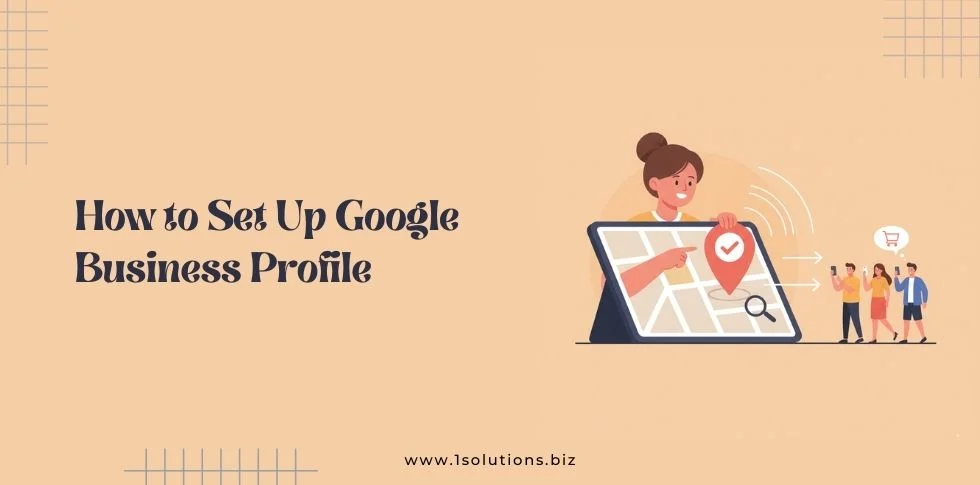
Setting up a Google Business Profile is one of the most important steps for any local business looking to improve its online visibility. This free tool from Google helps customers find your business, read reviews, and get essential information like hours, location, and contact details. Whether you’re a small restaurant, plumbing company, or retail store, a well-optimized Google Business Profile can significantly boost your local search rankings and drive more customers to your door.
In this comprehensive guide, we’ll walk you through every step of creating and optimizing your Google Business Profile. You’ll learn how to claim your listing, verify your business, add compelling photos, and use advanced features to attract more customers. Let’s get started with building your online presence the right way.
What Is Google Business Profile?
Google Business Profile, formerly known as Google My Business, is Google’s free platform that allows businesses to manage their online presence across Google Search and Google Maps. When potential customers search for businesses like yours, your profile appears in local search results, complete with your business information, photos, reviews, and more.
Your Google Business Profile serves as a digital storefront that provides customers with everything they need to know about your business. It displays your business name, address, phone number, website, hours of operation, and customer reviews. This information appears in Google’s local pack, knowledge panel, and Maps results.
The platform is essential for local SEO services because it directly influences how your business appears in location-based searches. When someone searches for “restaurants near me” or “plumber in [city name],” Google uses your Business Profile information to determine if your business should appear in the results.
Key Benefits of Google Business Profile
Having a complete Google Business Profile offers numerous advantages for your business:
- Increased visibility in local search results
- Better customer engagement through reviews and Q&A
- Free advertising through Google’s massive reach
- Detailed insights about customer behavior and search patterns
- Direct communication channel with customers
- Ability to showcase your products and services with photos
Before You Start: Prerequisites
Before diving into the setup process, make sure you have everything you need to create a complete and accurate profile.
Required Information
Gather the following information before you begin:
- Business name (exactly as it appears on your storefront or official documents)
- Complete business address
- Phone number
- Website URL
- Business category (choose the most specific category that describes your business)
- Business hours for each day of the week
- Business description (up to 750 characters)
Photos and Media
Prepare high-quality photos to showcase your business:
- Logo (square format, minimum 720×720 pixels)
- Cover photo (landscape format, minimum 1024×575 pixels)
- Interior and exterior photos of your business
- Photos of your products or services
- Team photos
- Photos that show your business in action
Quality photos significantly impact customer perception and can influence their decision to choose your business over competitors.
Step-by-Step Setup Process
Now let’s walk through the complete process of setting up your Google Business Profile from scratch.
Step 1: Access Google Business Profile
Start by visiting the Google Business Profile website at business.google.com. You’ll need a Google account to proceed. If you don’t have one, create a new Google account using the same email address you want to use for your business communications.
Click “Manage now” to begin the setup process. Google will ask you to sign in with your Google account credentials.
Step 2: Add Your Business Name
Enter your business name exactly as it appears on your storefront, business license, or other official documents. Consistency is crucial here because Google verifies business information across multiple sources.
If your business name appears in the dropdown suggestions, select it. This means Google already has some information about your business, which can speed up the verification process.
Avoid adding unnecessary keywords or promotional text to your business name. Use only your official business name to comply with Google’s guidelines.
Step 3: Select Your Business Category
Choose the primary category that best describes your business. This is one of the most important decisions because it affects which searches your business appears in and what features are available to you.
Google provides hundreds of categories, so take time to find the most specific one that matches your business. For example, instead of choosing “Restaurant,” select “Italian Restaurant” or “Pizza Restaurant” if that’s more accurate.
You can add additional categories later, but your primary category should be the most important one for your business.
Step 4: Add Your Business Location
If you have a physical location where customers can visit, select “Yes” when asked if you want to add a location. Enter your complete business address, including street number, street name, city, state, and ZIP code.
For businesses that serve customers at their location but don’t have a physical storefront (like plumbers or delivery services), you can choose to hide your address and instead define a service area.
Make sure your address is accurate because Google will use this information for verification and local search results. Common Google My Business mistakes include using inconsistent address formats across different platforms.
Step 5: Define Your Service Area (If Applicable)
If your business serves customers outside of your physical location, you can define a service area. This is particularly important for businesses like:
- Plumbing and HVAC companies
- Delivery services
- Cleaning services
- Contractors and repair services
You can specify your service area by cities, ZIP codes, or radius around your business location. Be realistic about your service area to ensure you only appear in searches for areas you actually serve.
Step 6: Add Contact Information
Enter your primary business phone number. Use a local phone number whenever possible, as this can help with local search rankings. Avoid using personal cell phones or shared numbers if you have a dedicated business line.
Add your website URL if you have one. If you don’t have a website yet, consider exploring Shopify development services if you’re in e-commerce, or other web development options for your industry.
Step 7: Choose Verification Method
Google requires verification to ensure that you’re the legitimate owner of the business. The most common verification methods include:
- Postcard verification (most common)
- Phone verification
- Email verification
- Instant verification (for some businesses)
Postcard verification typically takes 5-7 business days. Google will mail a postcard with a verification code to your business address. Once you receive it, log back into your account and enter the code to complete verification.
Optimizing Your Business Profile
After completing the basic setup and verification, it’s time to optimize your profile to maximize its effectiveness.
Writing an Effective Business Description
Your business description is your opportunity to tell potential customers what makes your business special. You have up to 750 characters to describe your services, specialties, and unique value proposition.
Include relevant keywords naturally, but focus on writing for humans first. Mention your services, location, and what sets you apart from competitors. For example, a restaurant might mention signature dishes, atmosphere, and years of experience.
Avoid keyword stuffing or promotional language that sounds like advertising. Instead, focus on providing helpful information that customers want to know.
Adding High-Quality Photos
Photos are one of the most important elements of your Google Business Profile. Businesses with photos receive 42% more requests for driving directions and 35% more click-throughs to their websites.
Upload a variety of photos including:
- Your logo as the profile photo
- A compelling cover photo that represents your business
- Interior photos showing your space
- Exterior photos of your building or storefront
- Product or service photos
- Team photos to add a personal touch
- Photos of customers enjoying your business (with permission)
Update your photos regularly to keep your profile fresh and engaging. Seasonal photos, new products, or renovations should all be documented in your profile.
Setting Accurate Business Hours
Accurate business hours are crucial for customer satisfaction and local search rankings. Include regular hours for each day of the week, and make sure to update them for holidays, special events, or temporary changes.
Use the “Special Hours” feature for holidays, temporary closures, or extended hours during busy seasons. This prevents customer frustration and shows Google that you keep your information current.
Consider adding “More Hours” if you have different hours for specific services, such as phone support or delivery times.
Adding Attributes
Attributes help customers understand what amenities and services you offer. These might include:
- Wheelchair accessibility
- Wi-Fi availability
- Parking options
- Payment methods accepted
- Outdoor seating
- Pet-friendly policies
The available attributes vary by business category, so select all that apply to your business. These details help customers make informed decisions and can influence their choice to visit your business.
Advanced Features and Tools
Once your basic profile is complete and optimized, explore these advanced features to get even more value from your Google Business Profile.
Google Posts
Google Posts allow you to share updates, offers, events, and news directly on your Business Profile. These posts appear in your knowledge panel and can help drive engagement and conversions.
Create posts for:
- Special offers and promotions
- New products or services
- Upcoming events
- Company news and updates
- Seasonal content
Learn more about optimizing Google Business posts for local engagement to maximize the impact of this feature.
Products and Services
Use the Products and Services sections to showcase what you offer. Add detailed descriptions, prices (if appropriate), and high-quality photos for each item.
This feature is particularly valuable for retail businesses, restaurants, and service providers. It allows customers to browse your offerings before visiting or calling, which can lead to more qualified leads.
Messaging
Enable messaging to allow customers to contact you directly through your Google Business Profile. This creates another touchpoint for customer service and can help capture leads that might otherwise go to competitors.
Respond to messages promptly to maintain a good impression and show that you’re active and responsive. Consider setting up automated responses for common questions or during off-hours.
Booking and Appointments
If your business takes appointments, integrate your booking system with your Google Business Profile. This allows customers to schedule appointments directly from your profile, reducing friction in the conversion process.
Popular booking platforms like Acuity, Calendly, and others can often integrate directly with your Google Business Profile.
Managing Reviews and Customer Interaction
Reviews are a crucial component of your Google Business Profile and significantly impact your local search rankings and customer trust.
Encouraging Reviews
Develop a systematic approach to encouraging satisfied customers to leave reviews:
- Ask customers in person after a positive interaction
- Include review requests in follow-up emails
- Add review links to your website and social media
- Train staff to mention reviews during customer interactions
- Provide excellent service that naturally motivates customers to share their experience
Never incentivize reviews with discounts or freebies, as this violates Google’s policies and can result in penalties.
Responding to Reviews
Respond to all reviews, both positive and negative, in a professional and timely manner. This shows that you value customer feedback and are actively engaged with your community.
For positive reviews, thank the customer and mention specific details they shared. For negative reviews, apologize for their poor experience, offer to resolve the issue, and invite them to contact you directly.
Keep your responses brief, professional, and focused on the customer’s experience rather than defending your business.
Handling Questions and Answers
Monitor the Questions and Answers section of your profile regularly. Customers and Google users can ask questions about your business, and these Q&As appear publicly on your profile.
Answer questions promptly and thoroughly. If you notice frequently asked questions, consider adding this information to your business description or creating a post about it.
Monitoring Performance with Insights
Google Business Profile provides detailed insights about how customers find and interact with your business.
Understanding Key Metrics
Pay attention to these important metrics:
- Search queries that show your business
- Customer actions (website visits, direction requests, phone calls)
- Photo views and engagement
- Direction requests and call volume
- Review and rating trends
Use this data to understand what customers are looking for and how they interact with your business online.
Using Data to Improve Performance
Analyze your insights to identify opportunities for improvement:
- If customers frequently ask for directions, ensure your address is prominent and accurate
- If website visits are low, check that your website link is working and consider improving your business description
- If phone calls are high but conversions are low, evaluate your phone answering process
- If photo views are low, add more engaging and diverse photos
Regular monitoring and optimization based on these insights can significantly improve your profile’s performance.
Integration with Overall SEO Strategy
Your Google Business Profile should be part of a comprehensive local SEO strategy. Google My Business optimization works best when combined with other digital marketing efforts.
Consistency Across Platforms
Ensure your business information is consistent across all online platforms:
- Your website
- Social media profiles
- Online directories
- Review sites
- Local business listings
Inconsistent information can confuse both customers and search engines, potentially hurting your local search rankings.
Local SEO Best Practices
Combine your Google Business Profile optimization with other local SEO packages strategies:
- Optimize your website for local search terms
- Build local citations and directory listings
- Create location-specific content
- Engage with local community events and organizations
- Use schema markup for business information
Common Mistakes to Avoid
Avoid these common pitfalls that can hurt your Google Business Profile performance:
Information Accuracy Issues
- Using inconsistent business names across platforms
- Providing incorrect or outdated contact information
- Neglecting to update holiday hours or temporary changes
- Using a P.O. Box instead of a physical address for location-based businesses
Optimization Oversights
- Choosing overly broad or incorrect business categories
- Ignoring the business description or stuffing it with keywords
- Uploading low-quality or irrelevant photos
- Failing to respond to reviews and customer questions
Policy Violations
- Creating multiple profiles for the same business
- Using promotional content in business descriptions
- Incentivizing fake reviews
- Adding services or locations that don’t actually exist
Measuring Success and ROI
Track the impact of your Google Business Profile optimization efforts to understand your return on investment.
Key Performance Indicators
Monitor these metrics to gauge success:
- Increase in profile views and impressions
- Growth in website clicks from your profile
- More direction requests and phone calls
- Improved average rating and review volume
- Higher local search rankings
- Increased foot traffic and sales
Long-term Strategy
Building a successful Google Business Profile is an ongoing process. Regular updates, consistent engagement, and continuous optimization are essential for long-term success.
Consider how your Google Business Profile fits into your broader digital marketing strategy. For businesses looking to expand their online presence, exploring affordable SEO packages can help coordinate your local SEO efforts with other marketing initiatives.
Remember that Google Maps ranking tips and local SEO strategies work together to improve your overall online visibility. Your Google Business Profile is just one piece of a comprehensive digital marketing strategy.
Setting up and optimizing your Google Business Profile is one of the most cost-effective ways to improve your local online presence. By following this comprehensive guide, you’ll create a profile that attracts more customers, builds trust, and drives business growth.
The key to success lies in accuracy, completeness, and ongoing engagement. Keep your information current, respond to customers promptly, and regularly update your profile with fresh content and photos. With consistent effort, your Google Business Profile will become a powerful tool for attracting new customers and growing your business.
Whether you’re just starting out or looking to improve an existing profile, the strategies outlined in this guide will help you maximize the impact of your Google Business Profile. Take action today to claim and optimize your profile, and start reaping the benefits of improved local search visibility.
Ready to take your local SEO to the next level? At 1Solutions, we specialize in local SEO services that drive real results for businesses like yours. Our team of experts can help you optimize your Google Business Profile, improve your local search rankings, and attract more customers. Get a free proposal today and discover how we can help your business grow through strategic digital marketing solutions.
Frequently Asked Questions
How long does it take to set up a Google Business Profile?
The initial setup process takes about 15-30 minutes to complete. However, verification can take 5-7 business days if you choose postcard verification, which is the most common method. Once verified, you can immediately start optimizing your profile with photos, descriptions, and other details. Full optimization, including adding all photos and information, typically takes 1-2 hours of focused work.
Can I create a Google Business Profile without a physical address?
Yes, you can create a profile for service-area businesses that don’t have a customer-facing location. During setup, you can choose to hide your address and instead define a service area where you operate. This is perfect for businesses like plumbers, contractors, delivery services, or consultants who serve customers at their locations rather than having a physical storefront.
How much does Google Business Profile cost?
Google Business Profile is completely free to use. There are no setup fees, monthly charges, or hidden costs. All features including profile creation, photo uploads, review management, insights, and Google Posts are available at no charge. This makes it one of the most cost-effective marketing tools available for local businesses.
What should I do if my business information is incorrect on Google?
If your business already appears on Google with incorrect information, you can claim and verify your profile to correct the details. Go to business.google.com, search for your business, and select “Own this business?” or “Claim this business.” After verification, you can edit all the information including name, address, phone number, hours, and category. For persistent issues, you may need to contact Google Support for assistance.
How often should I update my Google Business Profile?
Update your profile immediately whenever business information changes, such as hours, contact details, or services. For optimal performance, add new photos at least weekly, create Google Posts monthly, and respond to reviews within 24-48 hours. Regular updates signal to Google that your business is active and helps maintain good local search rankings.
Can I have multiple Google Business Profiles for different locations?
Yes, if you have multiple physical business locations, you should create a separate Google Business Profile for each location. Each location needs its own unique address and should serve customers at that specific location. Use Google’s bulk upload tools if you have many locations. However, avoid creating multiple profiles for the same location, as this violates Google’s policies.
What’s the difference between Google Business Profile and Google Ads?
Google Business Profile is a free platform for managing your business information on Google Search and Maps. Google Ads is a paid advertising platform where you pay for clicks or impressions. Your Business Profile appears in organic local search results, while Google Ads appear in paid ad sections. Both can work together as part of a comprehensive digital marketing strategy, but the Business Profile provides free visibility in local searches.











 in India