

























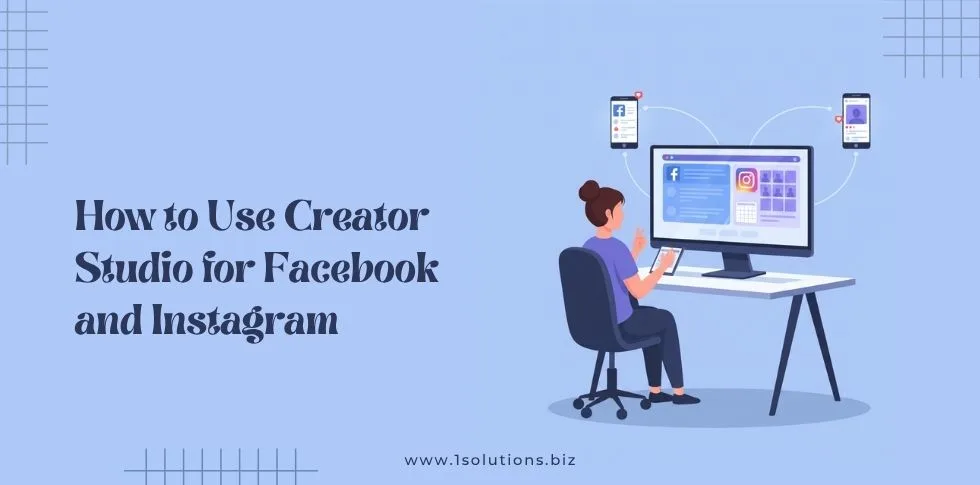
Managing social media content across multiple platforms can be overwhelming. Facebook Creator Studio simplifies this process by giving you a single dashboard to manage both your Facebook and Instagram content. This powerful tool helps businesses streamline their social media workflow, schedule posts, analyze performance, and engage with their audience more effectively.
Whether you’re a small business owner, social media manager, or digital marketer, mastering Creator Studio can save you hours of work while improving your content strategy. This comprehensive guide will walk you through everything you need to know about using Creator Studio to maximize your social media impact.
What is Facebook Creator Studio?
Facebook Creator Studio is a free content management platform that allows you to create, publish, and manage content across Facebook and Instagram from one central location. Meta developed this tool specifically for content creators, businesses, and marketers who need to maintain a consistent presence across both platforms.
The platform combines publishing tools, analytics, and monetization features into a unified interface. You can schedule posts weeks in advance, track engagement metrics, respond to comments, and even manage your Instagram Direct Messages without switching between apps.
Creator Studio works particularly well for businesses that maintain active social media presences. Just like how social media marketing trends evolve constantly, the tools we use to manage these platforms must also adapt to meet changing needs.
Key Benefits of Using Creator Studio
Creator Studio offers several advantages over managing platforms separately:
- Centralized content management for both Facebook and Instagram
- Advanced scheduling capabilities with optimal timing suggestions
- Comprehensive analytics and performance insights
- Bulk content upload and management features
- Cross-platform content repurposing tools
- Monetization tracking and management
Getting Started with Creator Studio
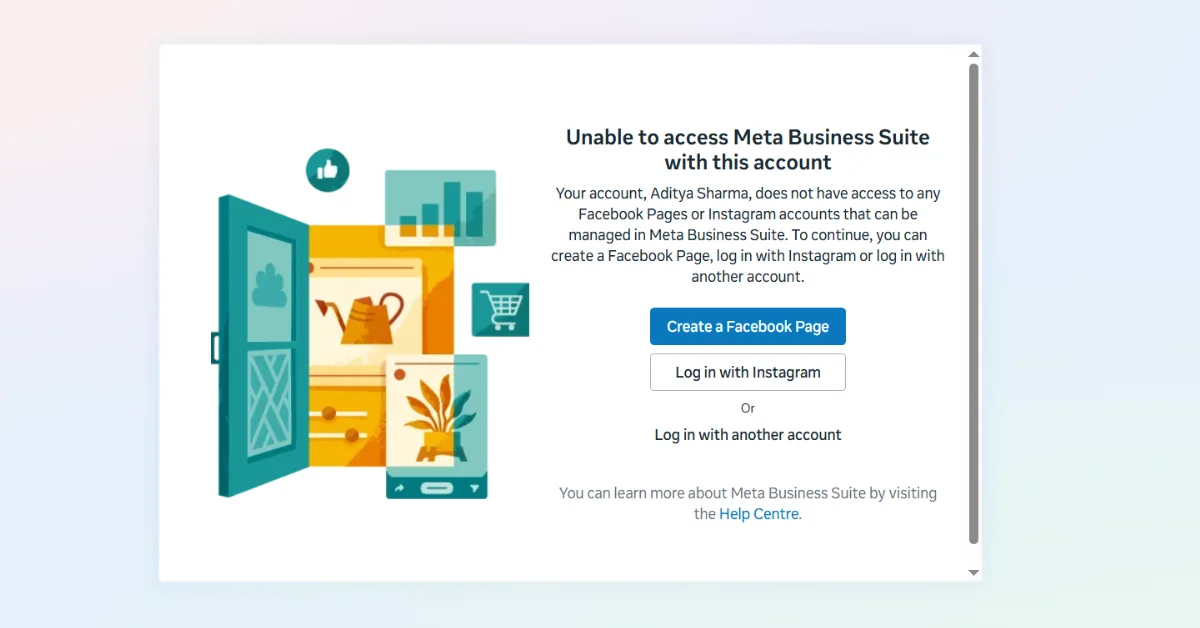
Setting up Creator Studio requires a few simple steps. First, you need a Facebook account with access to a Facebook Page or Instagram business account. Personal Facebook profiles cannot access Creator Studio features.
Setting Up Your Account
Navigate to creators.facebook.com and log in with your Facebook credentials. If you manage multiple Pages or Instagram accounts, you’ll see them listed in the account switcher at the top left of the interface.
Connect your Instagram account by going to Settings and clicking “Connect Account.” You’ll need to authorize the connection and ensure your Instagram account is set to business or creator mode. This connection enables cross-posting and unified management features.
Once connected, spend time exploring the interface. The left sidebar contains all major features: Content Library, Posts, Stories, IGTV, Reels, and Insights. Each section offers specific tools for managing different content types.
Understanding the Dashboard Layout
The Creator Studio dashboard provides a clean, intuitive layout. The main content area displays your recent posts, performance metrics, and scheduling calendar. The top navigation allows you to switch between different accounts you manage.
The Content Library serves as your central repository for all uploaded media. Photos, videos, and other assets stored here can be reused across multiple posts and platforms. This feature proves especially valuable for businesses maintaining consistent branding across channels.
Publishing Content with Creator Studio
Creating and publishing content through Creator Studio offers more flexibility than native platform apps. You can craft posts specifically for each platform or create cross-platform content that automatically adapts to each platform’s requirements.
Creating Single Platform Posts
To create a Facebook-only post, click “Create Post” and select Facebook from the platform options. Add your text, images, or videos, then customize the post with tags, location, and audience targeting options.
For Instagram posts, the process is similar but includes platform-specific features like hashtags, alt text, and product tags. Creator Studio automatically formats your content according to each platform’s specifications and requirements.
The preview feature shows exactly how your post will appear on each platform before publishing. This prevents formatting issues and ensures your content looks professional across all channels.
Cross-Platform Publishing
Cross-platform publishing saves significant time when managing multiple accounts. Create your post content once, then select both Facebook and Instagram as publishing destinations. Creator Studio automatically optimizes the format for each platform.
However, remember that each platform has different audience expectations and best practices. What works well on Facebook might need adjustment for Instagram’s more visual-focused audience. Consider customizing captions and hashtags for each platform even when cross-posting.
This strategic approach to content creation aligns with effective SEO strategies that prioritize audience-specific optimization across different channels and platforms.
Advanced Scheduling Features
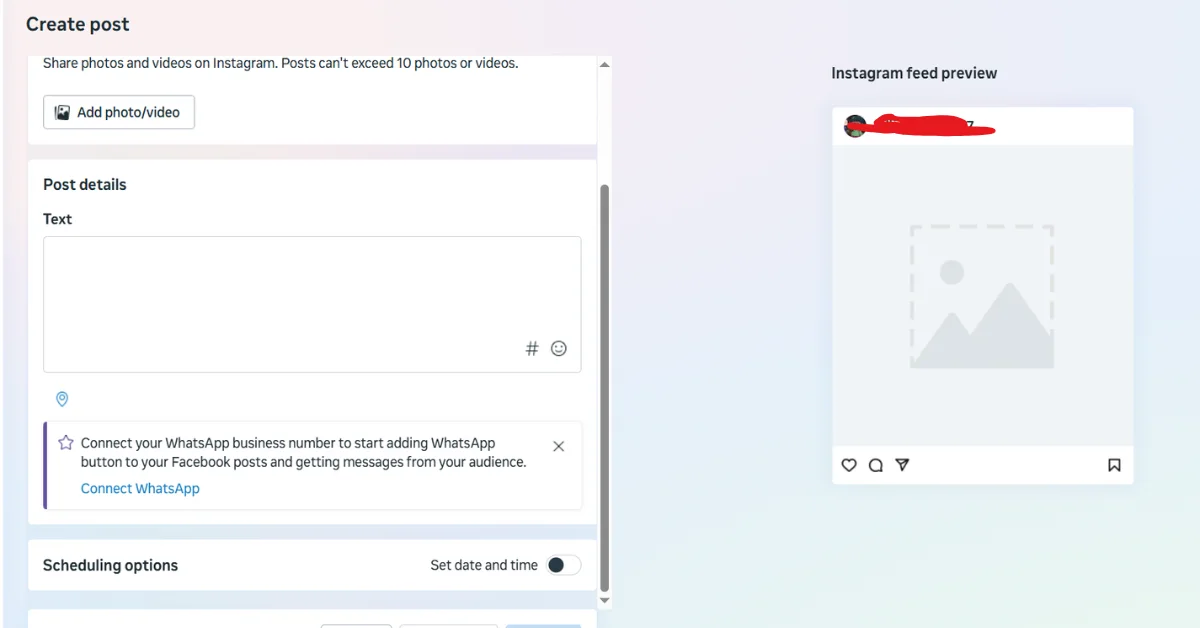
Creator Studio’s scheduling capabilities go far beyond basic post timing. The platform offers intelligent suggestions, bulk scheduling, and content calendar management that can transform your social media strategy.
Optimal Timing Recommendations
The platform analyzes your audience engagement patterns and suggests optimal posting times. These recommendations are based on when your specific followers are most active, not generic best practice guidelines.
Access these insights through the Publishing Tools section. Creator Studio displays recommended posting times for different days of the week, helping you maximize reach and engagement without manual testing.
You can also schedule posts up to 75 days in advance, allowing for comprehensive content planning around events, product launches, or seasonal campaigns.
Bulk Content Management
For businesses with extensive content needs, bulk upload features streamline the publishing process. Upload multiple photos or videos simultaneously, then create individual posts or carousel content from your uploaded assets.
The Content Library organizes your media with tags, folders, and search functionality. This organization becomes crucial as your content volume grows and you need to quickly locate specific assets for repurposing or campaigns.
Bulk scheduling allows you to prepare weeks of content in a single session. Create multiple posts, set different publishing times, and let Creator Studio handle the automatic publication according to your schedule.
Content Types and Formats
Creator Studio supports all major content formats across both platforms. Understanding how to leverage each content type maximizes your social media impact and audience engagement.
Feed Posts and Carousel Content
Standard feed posts remain the foundation of most social media strategies. Creator Studio allows you to create single image posts, carousel posts with multiple images, and video content with the same interface.
Carousel posts perform particularly well for showcasing products, telling stories, or sharing step-by-step tutorials. Upload up to 10 images or videos per carousel post, and add individual captions or calls to action for each slide.
Video content receives priority in both Facebook and Instagram algorithms. Creator Studio supports video uploads up to 4GB, with automatic compression and optimization for each platform’s requirements.
Stories and Temporary Content
Stories offer a more casual way to connect with your audience. Creator Studio’s Stories creation tools include text overlays, stickers, and interactive elements like polls and questions.
Schedule Stories content just like feed posts, ensuring consistent presence even when you’re not actively managing your accounts. This feature is particularly valuable for businesses in different time zones from their target audience.
Story Highlights allow you to preserve important Stories content permanently. Use Highlights to showcase products, customer testimonials, or frequently asked questions that provide ongoing value to your audience.
IGTV and Reels Management
Long-form video content through IGTV and short-form Reels require different strategies. Creator Studio provides separate sections for managing each content type with format-specific optimization tools.
IGTV content can be up to 60 minutes long, making it perfect for tutorials, interviews, or detailed product demonstrations. Add custom thumbnails, detailed descriptions, and series organization through Creator Studio’s IGTV management tools.
Reels have become increasingly important for reaching new audiences. Creator Studio’s Reels tools include trending audio suggestions, hashtag recommendations, and performance tracking specifically for short-form content.
Analytics and Performance Tracking
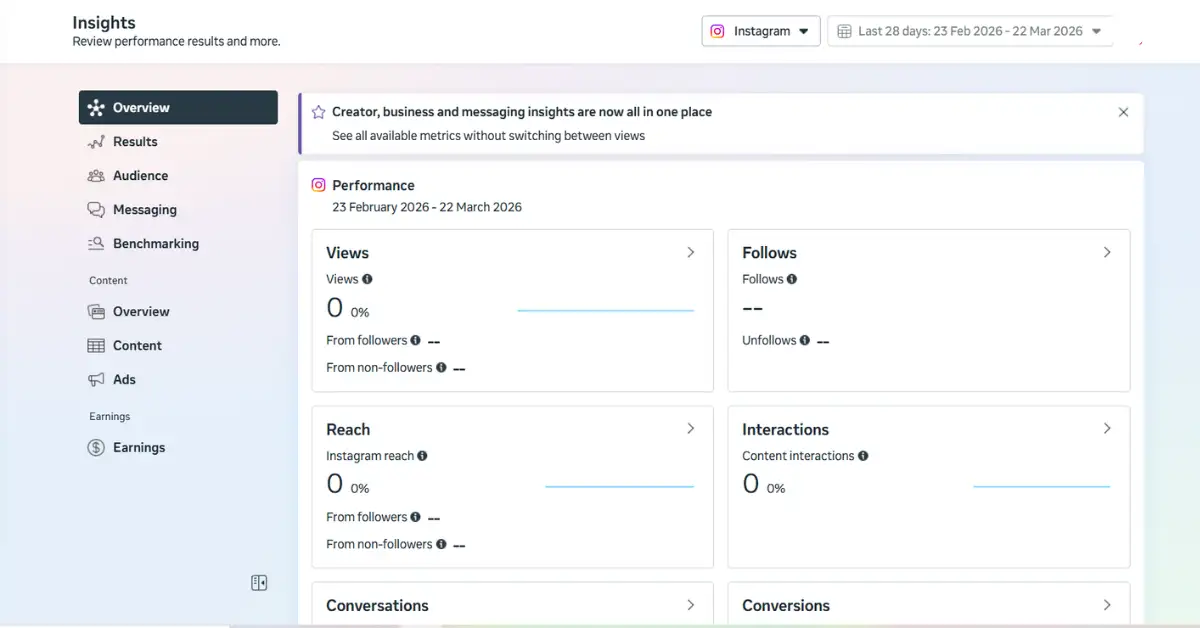
Understanding your content performance is crucial for improving your social media strategy. Creator Studio provides comprehensive analytics that go beyond basic like and comment counts.
Engagement Metrics and Insights
The Insights section breaks down your content performance across multiple dimensions. View reach, impressions, engagement rates, and audience demographics for individual posts or your overall account performance.
Engagement rate calculations help you understand which content resonates most with your audience. Creator Studio shows engagement rates for different content types, helping you optimize your content mix for maximum impact.
Audience insights reveal demographic information about your followers, including age ranges, geographic locations, and when they’re most active. This data informs both content creation and posting schedule decisions.
Just as comprehensive SEO audits require detailed analytics, effective social media management depends on understanding these performance metrics and making data-driven decisions.
Content Performance Analysis
Compare performance across different content types to identify what works best for your audience. Creator Studio’s analytics show which posts drive the most engagement, reach, and website traffic.
Top-performing post analysis helps you replicate successful content strategies. Look for patterns in timing, content type, captions, and hashtags that consistently generate strong engagement.
Video performance metrics include watch time, completion rates, and audience retention graphs. These insights help you optimize video content length and structure for maximum viewer engagement.
Cross-Platform Performance Comparison
Creator Studio allows you to compare how the same content performs across Facebook and Instagram. This comparison reveals platform-specific preferences and helps you tailor future content accordingly.
Reach and engagement patterns often differ significantly between platforms. Content that performs well on Facebook might need different hashtags, timing, or formatting to succeed on Instagram.
Use these cross-platform insights to refine your content strategy for each platform while maintaining consistent brand messaging and visual identity.
Comment Management and Community Engagement
Managing audience interactions becomes challenging as your following grows. Creator Studio centralizes comment management and provides tools for maintaining active community engagement across platforms.
Unified Inbox Features
The Messages section combines comments, direct messages, and mentions from both Facebook and Instagram into a single interface. This centralization prevents missed interactions and ensures timely responses to your audience.
Filter messages by platform, message type, or read status to prioritize your responses. Quick reply templates save time for frequently asked questions while maintaining personalized communication.
Comment moderation tools help maintain positive community spaces. Set up automatic filters for inappropriate language, spam, or off-topic comments to reduce manual moderation time.
Response Management Strategies
Consistent response timing builds trust with your audience. Creator Studio’s notification system alerts you to new comments and messages, helping you maintain responsive communication.
Use saved replies for common questions about business hours, product information, or customer service inquiries. These templates ensure consistent information while allowing for personalized additions.
Monitor brand mentions and hashtag usage to discover conversations about your business happening outside your direct posts. Engaging with these broader conversations increases your visibility and community presence.
Effective community management parallels the principles found in Google My Business optimization, where consistent engagement and timely responses significantly impact your business’s online reputation.
Content Library Organization
As your content volume grows, organization becomes critical for efficiency. Creator Studio’s Content Library offers sophisticated organization tools that streamline content management and reuse.
Asset Management System
Upload and organize photos, videos, and graphics with custom tags and folders. This system allows you to quickly locate specific content for campaigns, seasonal posts, or brand consistency maintenance.
Create folder structures that match your content strategy. Organize by campaign, product category, content type, or any system that makes sense for your business workflow.
The search functionality works across file names, tags, and upload dates. This powerful search capability becomes invaluable when you need to locate specific assets quickly for time-sensitive posts.
Content Reuse and Repurposing
Effective content strategy often involves repurposing successful assets across different contexts. Creator Studio makes it easy to reuse photos, videos, and graphics while creating fresh posts around them.
Track which assets perform best across different posts and platforms. High-performing images or videos can be repurposed with different captions, hashtags, or posting times to reach new audience segments.
Brand asset libraries ensure consistent visual identity across all posts. Store logos, brand colors, and template designs in easily accessible folders for quick application to new content.
Monetization and Business Tools
For businesses looking to generate revenue through social media, Creator Studio provides monetization tracking and management tools that simplify the process of turning social media presence into business results.
Revenue Tracking Features
Monitor earnings from Facebook’s various monetization programs including in-stream ads, fan subscriptions, and branded content partnerships. Creator Studio provides detailed breakdowns of revenue sources and performance.
Set up and manage Facebook Shop integration directly through Creator Studio. This integration allows followers to browse and purchase products without leaving the platform, reducing friction in the customer journey.
Track link clicks and website traffic generated from your social media posts. This data helps you understand which content types drive the most valuable traffic to your business website.
Business Integration Capabilities
Connect Creator Studio with your broader business tools through Facebook’s Business Manager integration. This connection allows for more sophisticated advertising and audience management capabilities.
Product catalog integration enables automatic product tagging in posts and Stories. This feature is particularly valuable for e-commerce businesses looking to drive direct sales through social media.
Lead generation forms can be attached to posts and ads managed through Creator Studio. Capture potential customer information directly within the social media environment for follow-up marketing efforts.
These business integration features work similarly to how Shopify development services integrate social commerce capabilities directly into e-commerce platforms for seamless customer experiences.
Mobile App vs Desktop Experience
Creator Studio is available as both a mobile app and desktop platform. Understanding the strengths of each version helps you choose the right tool for different tasks and workflows.
Mobile App Advantages
The Creator Studio mobile app excels at on-the-go content creation and quick engagement management. Use the mobile app to respond to comments, upload photos directly from your camera, and publish time-sensitive content.
Mobile-specific features include camera integration, location tagging, and push notifications for new comments or messages. These features make the mobile app ideal for businesses that create content in real-time or need immediate response capabilities.
The mobile app’s interface is optimized for touch interaction and quick actions. Scheduling posts, responding to comments, and checking analytics can all be done efficiently during travel or away from your desk.
Desktop Platform Benefits
The desktop version provides more comprehensive tools for detailed content planning and analysis. Use the desktop platform for bulk content creation, detailed analytics review, and complex scheduling tasks.
Larger screen real estate makes it easier to manage multiple content pieces simultaneously, compare analytics across different time periods, and organize your Content Library with precision.
File management and bulk operations work more efficiently on desktop. Upload large video files, organize extensive photo libraries, and create detailed content calendars with greater ease than mobile interfaces allow.
Integration with Other Marketing Tools
Creator Studio doesn’t operate in isolation. Smart businesses integrate it with their broader marketing technology stack to create seamless workflows and comprehensive campaign management.
Third-Party Tool Connections
While Creator Studio doesn’t directly integrate with all marketing tools, you can create efficient workflows by combining it with other platforms. Use social media management tools alongside Creator Studio to cover platforms beyond Facebook and Instagram.
Content creation tools like Canva or Adobe Creative Suite can prepare assets that upload seamlessly into Creator Studio’s Content Library. Establish workflows that move content efficiently from creation to publication.
Analytics platforms can supplement Creator Studio’s insights with cross-platform social media analysis. Combine Creator Studio data with website analytics to understand the complete customer journey from social media to conversion.
Marketing Automation Opportunities
Link Creator Studio publishing with email marketing campaigns for cohesive multi-channel marketing. When you publish important announcements or product launches on social media, trigger corresponding email campaigns to your subscriber list.
Customer relationship management systems can benefit from social media insights gathered through Creator Studio. Social engagement data provides valuable context for customer interactions and sales processes.
Content marketing calendars can incorporate Creator Studio scheduling to ensure consistent messaging across all marketing channels. Plan blog posts, social media content, and email campaigns together for maximum impact.
This integrated approach mirrors the comprehensive strategies used in local SEO services, where multiple digital marketing channels work together to achieve business objectives.
Troubleshooting Common Issues
Even powerful tools like Creator Studio occasionally present challenges. Understanding common issues and their solutions keeps your social media management running smoothly.
Connection and Access Problems
Instagram connection issues are among the most common Creator Studio problems. If your Instagram account becomes disconnected, navigate to Settings and reconnect your account through the official authorization process.
Page access permissions can change when team members are added or removed from your Facebook Page. Ensure all team members who need Creator Studio access have the appropriate Page roles assigned.
Two-factor authentication on your Facebook or Instagram accounts can sometimes interfere with Creator Studio access. Update your authentication settings if you experience persistent login issues.
Publishing and Scheduling Difficulties
Failed post publications often result from file size or format issues. Ensure your images and videos meet platform requirements for dimensions, file size, and format specifications.
Scheduled posts might fail if your account loses connection or if platform policies change. Check your scheduled content regularly and have backup plans for important time-sensitive posts.
Cross-platform publishing sometimes works for one platform but not another. When this happens, publish to each platform individually to identify which specific platform is causing issues.
Analytics and Data Discrepancies
Analytics data in Creator Studio might occasionally differ from native platform analytics due to different calculation methods or data processing delays. Use Creator Studio analytics for trends and patterns rather than exact numbers when precision is critical.
Missing engagement data usually resolves itself within 24 hours as platforms sync their databases. For important reporting deadlines, allow extra time for data to populate completely.
Export analytics data regularly to maintain historical records. Creator Studio’s data retention policies mean older analytics might become unavailable for detailed analysis.
Best Practices for Success
Maximizing Creator Studio’s potential requires strategic thinking and consistent execution. These best practices help you build effective social media workflows that drive real business results.
Content Planning Strategies
Develop content themes and series that provide consistent value to your audience. Use Creator Studio’s scheduling features to maintain regular posting schedules that keep your brand visible without overwhelming your followers.
Plan content around important business dates, product launches, and seasonal events. Creator Studio’s advance scheduling capabilities allow you to prepare campaigns well in advance, ensuring nothing important gets missed.
Balance different content types to maintain audience interest. Mix promotional posts with educational content, behind-the-scenes glimpses, and user-generated content to create a diverse and engaging feed.
Create content pillars that align with your business objectives and audience interests. These pillars provide structure for your content strategy while ensuring every post serves a specific purpose in your marketing funnel.
Engagement Optimization Techniques
Respond to comments quickly and authentically to build stronger relationships with your audience. Use Creator Studio’s unified inbox to ensure no interaction goes unnoticed across platforms.
Ask questions and encourage participation in your posts. Social media algorithms favor content that generates engagement, so creating conversation starters helps increase your content’s visibility.
Share user-generated content and customer testimonials to build community and social proof. Creator Studio makes it easy to repost customer content while giving appropriate credit and maintaining brand consistency.
Monitor trending hashtags and topics relevant to your industry. Participate in broader conversations when appropriate to increase your visibility beyond your existing followers.
Performance Optimization Methods
Regularly review your analytics to identify patterns in successful content. Use these insights to refine your content strategy and focus on the types of posts that generate the best results for your specific goals.
Test different posting times and frequencies to find what works best for your unique audience. Creator Studio’s optimal timing suggestions provide a good starting point, but your specific audience might have different preferences.
A/B test different caption styles, hashtag strategies, and visual approaches to continuously improve your content performance. Small improvements in engagement rates compound over time to significantly impact your overall reach.
Set specific, measurable goals for your social media efforts and track progress through Creator Studio’s analytics. Whether you’re focused on brand awareness, website traffic, or direct sales, clear metrics help guide your strategy decisions.
These optimization approaches align with proven methodologies used in AI SEO strategies, where continuous testing and data-driven improvements lead to long-term success.
Security and Privacy Considerations
Managing business social media accounts requires attention to security and privacy settings. Creator Studio provides several features to help protect your accounts and maintain appropriate access controls.
Account Security Measures
Enable two-factor authentication on all accounts connected to Creator Studio. This additional security layer protects against unauthorized access even if your password is compromised.
Regularly review and update team member access permissions. Remove access for former employees promptly and ensure current team members have only the permissions they need for their specific roles.
Monitor login activity and account changes through Facebook’s security settings. Unusual activity patterns might indicate security issues that need immediate attention.
Use strong, unique passwords for your Facebook and Instagram accounts. Consider using a business password manager to maintain security across all your marketing tools and platforms.
Privacy Settings Management
Understand the privacy implications of cross-platform posting and audience targeting. Content published through Creator Studio follows the privacy settings of each individual platform.
Review data sharing settings between Facebook and Instagram to ensure they align with your business privacy policies and customer expectations.
Be mindful of customer data when using Creator Studio’s audience insights and targeting features. Ensure your use of social media data complies with relevant privacy regulations and your own privacy policies.
Regularly audit the third-party apps and services connected to your social media accounts through Creator Studio integrations. Remove unnecessary connections to minimize potential security risks.
Future Updates and Feature Development
Social media platforms constantly evolve, and Creator Studio regularly receives updates to support new features and capabilities. Staying informed about these changes helps you take advantage of new opportunities as they become available.
Keeping Up with Platform Changes
Follow Facebook’s Creator Studio blog and official announcements to learn about new features before they’re widely available. Early adoption of new features often provides competitive advantages in reach and engagement.
Join social media marketing communities and forums where Creator Studio users share tips, tricks, and updates about platform changes. These communities often identify useful features and workarounds before they become widely known.
Test new features in low-risk situations before incorporating them into important campaigns. New features sometimes have bugs or limitations that aren’t immediately apparent from official documentation.
Subscribe to Creator Studio’s notification settings to receive updates about new features, policy changes, and maintenance schedules that might affect your publishing workflow.
Preparing for Algorithm Changes
Social media algorithms change frequently, affecting how your content reaches your audience. Creator Studio’s analytics help you identify when algorithm changes might be impacting your performance.
Diversify your content strategy to reduce dependence on any single type of content or posting approach. Algorithm changes often favor different content types, so flexibility in your strategy provides protection against sudden drops in reach.
Focus on building genuine engagement and community rather than trying to game algorithm preferences. Authentic engagement tends to remain valuable regardless of specific algorithm changes.
Monitor industry news and platform announcements about upcoming algorithm changes. Understanding the reasoning behind changes helps you adapt your strategy proactively rather than reactively.
This forward-thinking approach parallels how successful businesses approach Google AI mode changes in SEO, where staying informed and adaptable leads to continued success despite platform evolution.
Creator Studio represents a powerful solution for businesses serious about social media marketing. By centralizing Facebook and Instagram management, providing comprehensive analytics, and offering advanced scheduling capabilities, it transforms social media from a time-consuming challenge into a strategic business asset.
Success with Creator Studio requires more than just learning the interface. It demands strategic thinking about content creation, audience engagement, and performance optimization. The businesses that thrive are those that use Creator Studio’s capabilities to build authentic relationships with their audiences while driving measurable business results.
Start with basic features like scheduling and analytics, then gradually incorporate advanced capabilities like cross-platform publishing, detailed audience insights, and monetization tools. This progressive approach ensures you build competency while avoiding overwhelm from too many features at once.
Remember that Creator Studio is a tool that amplifies good strategy rather than replacing it. Focus on creating valuable content that serves your audience’s needs and interests. Use Creator Studio’s features to distribute that content more effectively and measure its impact on your business objectives.
Frequently Asked Questions
Is Facebook Creator Studio completely free to use?
Yes, Facebook Creator Studio is completely free for all users. You only need a Facebook account with access to a Facebook Page or Instagram business account to start using all of its features. There are no hidden fees or premium tiers for basic functionality like scheduling posts, analytics, or content management.
Can I manage multiple Instagram and Facebook accounts through Creator Studio?
Yes, Creator Studio supports multiple account management. You can connect and manage multiple Facebook Pages and Instagram accounts from a single interface. Use the account switcher in the top left corner to move between different accounts. This feature is particularly useful for agencies or businesses managing multiple brands.
How far in advance can I schedule posts using Creator Studio?
Creator Studio allows you to schedule posts up to 75 days in advance for both Facebook and Instagram. This extended scheduling capability enables comprehensive content planning for seasonal campaigns, product launches, or extended marketing initiatives. You can also schedule different content types including feed posts, Stories, and video content.
Why are my Creator Studio analytics different from native platform analytics?
Analytics discrepancies between Creator Studio and native platform analytics can occur due to different data processing times, calculation methods, or reporting periods. Creator Studio typically aggregates data across platforms, while native analytics focus on platform-specific metrics. For the most accurate platform-specific data, cross-reference Creator Studio insights with native analytics.
Can I use Creator Studio to manage Instagram Direct Messages?
Yes, Creator Studio includes Instagram Direct Message management through its unified inbox feature. You can read, respond to, and manage Instagram DMs alongside Facebook Messages and comments from both platforms. This centralization helps ensure you don’t miss important customer communications across channels.
What should I do if my scheduled posts fail to publish?
If scheduled posts fail to publish, first check your internet connection and account permissions. Verify that your content meets platform requirements for file size, format, and content policies. If issues persist, try republishing manually or rescheduling the post. Keep backup plans for time-sensitive content, and regularly monitor your scheduled posts for any failures.
Does Creator Studio work with Instagram personal accounts?
No, Creator Studio only works with Instagram business or creator accounts. Personal Instagram accounts cannot be connected to Creator Studio. To use Creator Studio with your Instagram account, you must first convert it to a business or creator account through Instagram’s settings. This conversion is free and provides access to additional business features beyond just Creator Studio compatibility.
Final Takeaway
Managing social media content across multiple platforms can be overwhelming. Facebook Creator Studio simplifies this process by giving you a single dashboard to manage both your Facebook and Instagram content. This powerful tool helps businesses streamline their social media workflow, schedule posts, analyze performance, and engage with their audience more effectively.
Whether you’re a small business owner, social media manager, or digital marketer, mastering Facebook Creator Studio can save you hours of work while improving your content strategy. This comprehensive guide will walk you through everything you need to know about using Creator Studio to maximize your social media impact.
Whether you’re managing social media for a small local business or a large enterprise, Creator Studio provides the foundation for professional social media management. Invest the time to learn its capabilities thoroughly, and you’ll find it becomes an indispensable part of your marketing toolkit.
Ready to take your social media marketing to the next level? At 1Solutions, we help businesses develop comprehensive digital marketing strategies that include social media management, content creation, and performance optimization. Get a free proposal today to discover how we can help your business succeed across all digital marketing channels.







 in India